Touch Screen Inoperative After USB Software Download Failure - Recovery Advice (SSM65257)
Reference number: SSM65257
TOUCH SCREEN INOPERATIVE AFTER USB SOFTWARE DOWNLOAD FAILURE - RECOVERY ADVICE
TECHNICAL SERVICE BULLETIN
| LAND ROVER: | Range Rover Sport/L320; LR3/L319; LR2/L359; Range Rover Evoque/L538; Range Rover (All New)/L405; LR4/L319; Range Rover/L322 |
| CATEGORY: | Diagnostic Software Hardware |
SERVICE INFORMATION
Symptom 000101 Diagnostic Concerns
ISSUE
The Touch Screen remains blank/inoperative after a USB software download failure, and subsequent attempts to repeat the programming procedure also fail.
When unable to recover touch screen functionality using SDD, hardware must be removed and shipped to Mahwah for recovery using engineering tools.
CAUSE
Root cause of the original USB download failure is unknown, and currently under investigation. Failure rates are reasonably low by percentage, but there has been a high volume of failures reported since the launch of the Q228 service action.
Recovery of the touch screen using the special application titled "Entertainment - Touch screen recovery" may not be required, and in some cases could cause further corruption to the touch screen software.
Touch screens corrupted by the use of this special recovery tool application, are expected to require recovery by JLR North America in Mahwah.
SOLUTION
UNTIL FURTHER NOTICE DO NOT USE THE "Touch screen recovery" application on SDD to recover a non-responsive Touch screen.
The attached PDF file includes a specific procedure that should be used as an alternative method for touch screen recovery in this situation.
This process has proven to recover a high percentage of Touch screen displays rendered blank following a USB programming failure, and technicians should attempt this recovery method before replacing the Touch screen hardware or raising a Technical Assistance request.
The Touch Screen (TS) is also known as:
- Front Control/Display Interface Module (FCDIM)
- High Level Display Front (HLDF),
Please be aware that all three of these terms will be encountered working within the recommendations tab on SDD when searching for Touch screen programming applications.
The Audio Control Module (ACM) is also known as; the Integrated Audio Module (IAM)
When a Touch Screen display is rendered inoperative by a failed software download attempt, and repeat programming attempts fail; the following Touch screen recovery steps will normally allow a full recovery of Touch screen functionality.
STEP 1: You must determine the ACM (IAM) hardware part numbers for future reference when programming the Touch screen (FCDIM/HLDF) "as existing" during this recovery.
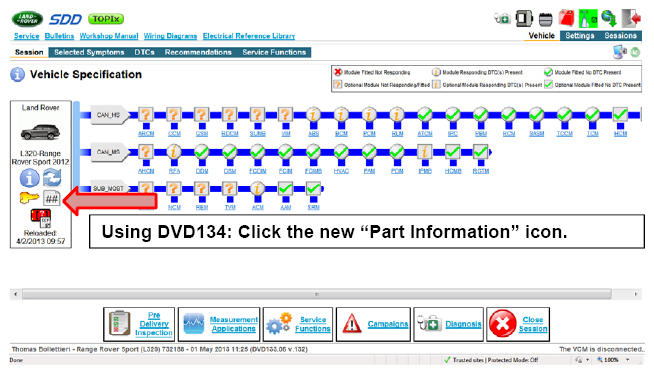
This Part Information report shows data read from control modules at the start of the diagnostic session, or from the most recently performed manual data refresh.
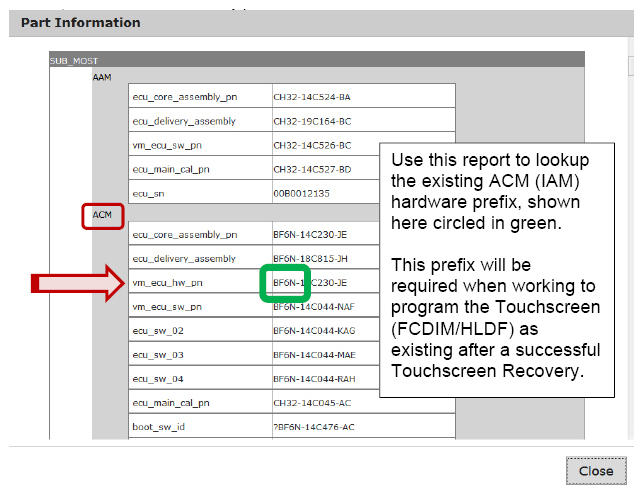
Once you have identified the ACM (IAM) hardware prefix and noted it for reference later, continue to step 2.
STEP 2: Click on the "Extras" tab to display additional programming applications.
Locate and run: "Configure Existing module - Front control/display interface module (high level display front)
Under these recovery conditions, it is normal and expected to see the on-screen error message pictured below.
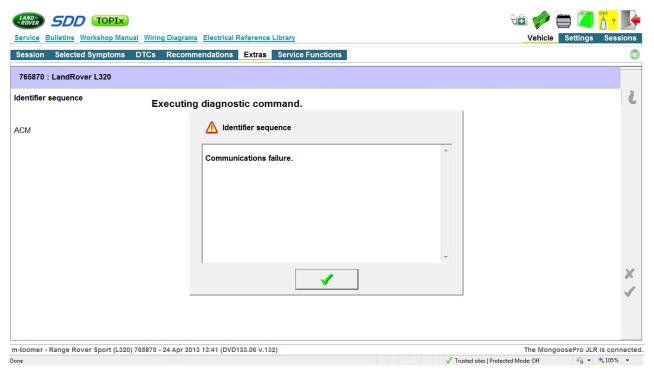
Tick past this error message and continue following these recovery instructions.
When prompted to "Select the audio control module hardware type", you will need to select the option that corresponds to the Hardware Prefix number read from the ACM in Step 1.
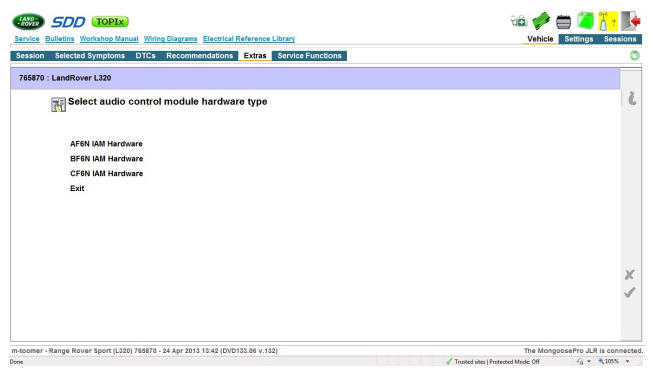
After making the correct IAM hardware selection, click the green tick to continue.
Advance to the software download confirmation screen that displays the existing and proposed software parts. DO NOT click the green tick until you perform the next step.
Once you have removed the fuse for the Touch screen power supply, be prepared to re-insert it when the 5-second rectification timer is on-screen. This timer will appear immediately after clicking the green tick to launch the software download.
When ready, click the green tick on the software download confirmation screen to launch the Touch screen software download.
When the rectification timer is displayed, reinsert the Touch screen power supply fuse immediately.
Follow all on-screen prompts to complete this task to recover the Touch screen to an operational condition.
Follow up with the Jaguar Land Rover Technical Helpline as required to ensure the vehicle is in a state suitable for return to the customer.