Tow Assist - New Trailer
When the CJB detects the trailer electrical plug has been connected, the trailer setup screen is displayed automatically on the TSD with the question: 'Has a trailer been connected?'
Selecting 'Yes' will bring up the first of a number of trailer setup screens. On first use the setup screens take the user through a series of configuration options for the connected trailer. To configure a new trailer select 'Add New' and then 'OK'.
Trailer Setup - Step 1 of 6
- Choose from the list of generic trailer descriptive names for the trailer attached, then select 'Next'.
Trailer Setup - Step 2 of 6
- Position the trailer straight behind the vehicle, to allow more accurate positioning of the target. Stick the self adhesive tracking target to the front of the trailer within the orange highlighted zone as displayed, then select 'Next'.
- The highlighted zone will turn green when the target sticker is correctly positioned.
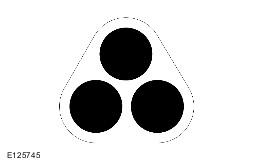
Trailer Setup - Step 3 of 6
- Select the correct number of axles for the chosen trailer, then select 'Next'.
Trailer Setup - Step 4 of 6
- Select the preferred camera view for use with this trailer, then select 'Next'.
Trailer Setup - Step 5 of 6
- Using the numeric pad, enter the Hitch Length of the trailer, then select 'Next'.
- the center-line of the axle on a single axle trailer,
- the mid-point between the axles on a twin axle trailer,
- the center line of the center axle on a triple axle trailer.
Trailer Setup - Step 6 of 6
- Using the distance adjustment buttons, set the orange overlay graphics at the width of the trailer wheels, or trailer edges when a tall trailer is to be used, then select 'Finish'.
A confirmation message will appear to show that the trailer information has been retained.
Finally, highlight the trailer that has been memorized, and select 'OK'.
The Tow Assist feature is now ready to use.